

Key Takeaways
Laptop Power States
Laptops have three main power states: sleep, hibernate, and full shutdown. Each handles your open work, battery drain, and system memory differently. Understanding which to use — and when — helps preserve battery health and keeps your machine running smoothly over time.
These states map to ACPI (Advanced Configuration and Power Interface) standards: Sleep corresponds to S3, Hibernate to S4, and Shutdown to S5, though exact implementation varies by operating system and hardware.
Sleep Mode: The Light Nap
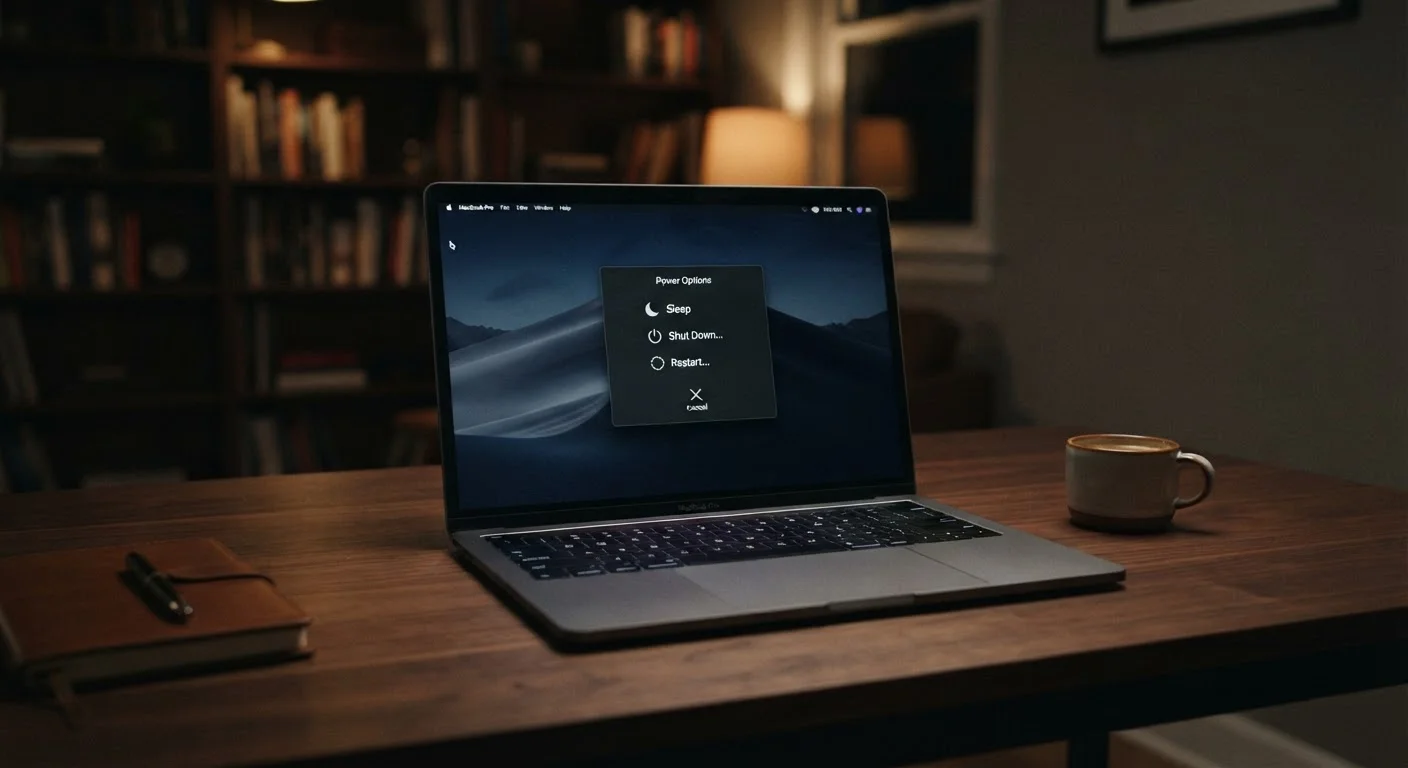
When you close your laptop lid or select Sleep from the power menu, your laptop enters a low-power state — but it doesn't fully turn off. The screen shuts down, the fan stops, and most components go quiet. However, your RAM stays powered, holding every open tab, document, and application exactly where you left it.
This makes sleep mode fast and seamless. Open the lid, enter your password, and you're back at work within a couple of seconds. The trade-off is a slow, continuous battery draw. While modern laptops have made sleep mode increasingly efficient, leaving a laptop sleeping on battery for 12–24 hours can still consume a meaningful percentage of charge.
Sleep is ideal for short breaks — stepping away for a meeting, lunch, or an hour of errands. For anything longer, especially if you're unplugged, you'll want to consider hibernate instead.
Configure Automatic Sleep and Hibernate Timers
Both Windows and macOS let you set automatic power transitions — for example, switching from sleep to hibernate after a set period of inactivity. On Windows, search for 'Power & sleep settings'; on macOS, check 'Battery' in System Settings. Setting a hibernate timer as a fallback can protect unsaved work if you forget to manually manage your power state.
Hibernate: The Deep Freeze
Hibernate takes a more thorough approach. Instead of holding your session in RAM, the operating system writes a complete snapshot of everything in RAM directly to your SSD or hard drive. Once that's done, the laptop cuts power entirely — no trickle drain, no fan noise, nothing.
The result is a power state that uses zero battery, while still preserving your work session. When you power the laptop back on, it reads that snapshot from storage and restores your desktop, open apps, and documents, usually within 15–30 seconds depending on the drive speed.
The main practical downside is that waking from hibernate is slower than waking from sleep, and each hibernate cycle writes a file equal to your RAM size to the drive. For most users with modern SSDs, this is a minor concern. Hibernate is particularly valuable when your battery is low and you don't have access to a charger — it's a reliable safety net against data loss.
~0–5%
Typical battery drain per hour in sleep mode
Exact drain varies by laptop model, age, and configuration, but most modern laptops consume roughly 1–3% of battery per hour in sleep state.
0%
Battery drain during hibernate
Because hibernate cuts power entirely after saving the session to disk, there is effectively zero battery consumption while the laptop remains hibernated.
15–30 sec
Typical hibernate wake-up time on SSD
Laptops equipped with solid-state drives can restore a hibernated session significantly faster than those using older spinning hard drives.
Full Shutdown: The Clean Slate
A full shutdown closes every application, clears RAM completely, and powers the laptop down to zero. Nothing is preserved in memory or on disk (beyond what you've explicitly saved). Starting up again takes the longest of the three options — typically 20–60 seconds depending on the hardware — because the operating system has to fully reload from scratch.
Despite being the slowest to recover from, shutdown is still important. Over time, background processes, cached files, and pending software updates accumulate. A periodic shutdown gives the system a chance to apply those updates properly, flush stale processes, and start fresh. For laptops stored for longer periods, a shutdown (combined with a partial charge for storage) is also better for long-term battery chemistry than leaving the device sleeping or hibernating indefinitely.
As part of broader good habits, regular shutdowns fit naturally into practices that extend your electronics' useful life.
Windows Hybrid Sleep: A Combined Approach
Some Windows laptops use a mode called Hybrid Sleep, which simultaneously stores the session in RAM (like sleep) and writes it to disk (like hibernate). This means fast resume when power is stable, but safe session recovery if power is lost. Hybrid Sleep is often enabled by default on desktop-class Windows machines but less commonly on laptops.
How to Choose the Right Power State
The decision largely comes down to how long you'll be away and whether your laptop is plugged in:
- Short break (under 2 hours, plugged in): Sleep mode is perfectly fine and offers the fastest resume.
- Several hours or overnight, on battery: Hibernate is the practical choice — it preserves your session without draining the battery.
- End of workday or longer storage: A full shutdown is the most complete reset and best for long-term system health.
It's also worth reviewing your laptop's power settings. Windows and macOS both allow you to configure what happens when you close the lid or press the power button — sleep, hibernate, or shutdown — and you can set automatic transitions based on inactivity or battery level.
If you're setting up a new machine and want to configure these options from the start, see our first-day laptop configuration walkthrough. And since power habits are closely linked to battery longevity, the same principles that apply to phone battery degradation are worth understanding for laptops as well.